Can't Control Source Device with JubileeTV Remote
Overview: Is this the right guide for you?
Your JubileeTV remote splits its duties between your TV and your connected source devices (like your cable/satellite set-top box, media player like Roku, etc.). This guide is specifically for users having trouble with Source Device Controls, meaning channel navigation, menus, directional arrows, and play/pause functions are failing.
Having trouble with TV Controls instead?
If the remote is failing to turn your TV on/off or adjust the volume, those signals go directly to your TV. Please see Can't Control TV with JubileeTV RemoteCan’t Control TV with JubileeTV Remote instead.
Quick Checks
Before diving into hardware troubleshooting, verify that one of these common scenarios isn't causing the issue.
1. Test Remote Battery
- JubileeTV Remote: Press a button on the remote. If the red LED at the top does not light up, replace the batteries.
- 6-Button Remote: Press a button on the remote. If the buttons do not light up, replace the batteries.
2. Check Usage Mode (Passive Mode Implications)
When the system is set to a Passive Mode, certain buttons (or entire remotes) are intentionally deactivated to simplify the user experience. Check your system's current Usage Mode below to ensure your remote is supposed to be active.
Usage Mode | JubileeTV Voice Remote | 6-Button Remote |
|---|---|---|
Interactive Mode | ✅ Active (Controls source devices) | ❌ Deactivated |
Passive Mode with Original Remote(s) | ❌ Deactivated | ❌ Deactivated |
Passive Mode with Simplified JubileeTV Remote (remote cover) | ✅ Active (Channel Up/Down only) | ❌ Deactivated |
Passive Mode with 6-Button Remote | ❌ Deactivated | ✅ Active (Channel Up/Down only) |
Important Note: The "Rule of Two" for Favorites
If you are using a Passive Mode with either the Simplified JubileeTV Remote or the 6-Button Remote, the channel buttons only cycle through favorited channels. You must have at least two Favorites configured. If you have one or zero, the buttons will be unresponsive. See the Favoritesa for instructions.
(For more on Usage Modes and how to check your system's current configuration, see JubileeTV Usage ModesUsage Modes).
3. Verify the TV Input
If your TV is showing its own "Smart TV" menu or a different HDMI input, seeThe TV is not on JubileeTV's HDMI port and/or Setting Your TV to Start on JubileeTVSetting the TV Input for steps on how to lock your TV to the JubileeTV source.
What to do next:
- If your remote is marked "Deactivated" above: It isn't broken! Change your Usage Mode if you want to use that specific remote.
- If you are using the JubileeTV Voice Remote: Proceed to the JubileeTV Remote Troubleshooting section below.
- If you are using the 6-Button Remote: Skip to the 6-Button Remote Troubleshooting section below.
JubileeTV Remote Troubleshooting
Follow these steps if your system is in Interactive Mode or Passive Mode with Simplified JubileeTV Remote.
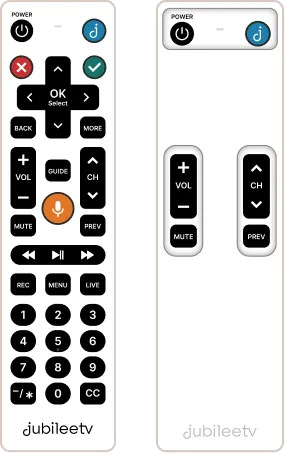
1. Restart Console and Devices
A simple power cycle often forces the Console and source device to find each other.
- Restarting in person: Unplug power from both your source device and the JubileeTV Console. Wait 30 seconds. Plug both back in and wait for a full reboot.
- Restarting remotely (via Telescope app): Open Telescope, select the Actions tab, tap Settings under JubileeTV Destinations, and select "Restart."
- Note: If restarting remotely, you'll only be able to restart the Console (not the source device).
- Test Control (after restarting): In Interactive Mode, press the J button to reach the home screen, select the source device, and test control. In Passive Mode, press Channel Up/Down to test control.
2. Verify the Remote-to-Console Connection
Ensure the remote is actively communicating with the Console by doing any of the tests below:
- Console LED Test: Press any button on the remote. If the Console's third LED (third one from the camera) blinks, your remote is connected.
- Blue J Test (Interactive Mode): Press the Blue J button. If the home screen appears, the remote is connected.
- Check the App (Admins only): Go to Hub Settings (gear icon), select the Details tab, and scroll down to check Remote Status.
If your remote is disconnected: Insert fresh batteries to trigger an auto-reconnect. If that fails, press and hold the Blue J and Back buttons together until the top light blinks rapidly, and watch for a "Remote Connected" message on the TV. If connection still fails, contact Support.
If your remote is connected:
- Proceed to Section 3a if you have never been able to control this device.
- Proceed to Section 3b if control worked previously but stopped.
3a. Control Never Worked
If control has failed since installation, there is likely a configuration error.
- Open Settings: On the JubileeTV remote, press GUIDE three times, then the Blue J once.
- Select your Device: Navigate to Devices and select your source device.
- Reconfigure: Follow the instructions in Add, Change or Remove a Source Devicea to reconfigure your source device.
3b. Control Worked But Doesn't Anymore
If your remote previously worked, check your physical connections and control types.
Step 1. Verify HDMI Connections
The JubileeTV Console controls devices based on the specific HDMI port they are plugged into. If a cable was unplugged and moved to a different port, the remote commands will no longer reach that device.
- Identify the Port: Open Console Settings (GUIDE x3, Blue J x1) or use Telescope (Actions > Settings). Navigate to Devices. Look for your device name (e.g., "DirecTV") and note its assigned port (HDMI 1, 2, or 3).
- Check the Cables: Look at the back of the Console and ensure the HDMI cable from your device is physically plugged into that exact port. Try using the remote again.
Step 2. Determine Control Type
From Console Settings, select Devices, choose your source device, and note its Control Type. Follow the matching section below.
If Control Type is IR (infrared)
If your Control Type is listed as IR, the JubileeTV Console communicates with your device using light signals sent from the Console to your device. Physical blockages are the most common cause of control issues.
- Clear the Path: Ensure no decor or closed cabinet doors are blocking the front of the Console or source device.
- Adjust Positioning: Pull the device forward toward the shelf edge to better "see" bouncing IR signals.
- Install IR Blaster Cables (Recommended): Plug the included IR Blaster cable into the Console. Stick one of the small emitters directly in front of your source device’s IR receiver window (usually a small, shiny dark spot).
- The IR blaster cable includes two emitters. We recommend placing the second emitter directly in front of your TV’s IR receiver window to ensure consistent power and volume control.
If Control Type is IP (Internet Protocol - Roku Only)
- Reconfigure IP Control: Press GUIDE x3, Blue J x1. Navigate to Devices > [Your Roku] > Control Settings > Change Control Type. Select IP and follow the prompts.
- Note: You must use the original Roku remote for this step, as Telescope navigation will be offline.
If Control Type is CEC (Apple TV, Fire TV, Google TV)
- Check for CEC Collisions: Unplug all other devices from the TV except the JubileeTV Console to see if control returns.
- Refresh Your TV's CEC Settings: Use your TV's original remote to open TV settings and follow the instructions in Enable or Refresh TV's CEC Settings
- Refresh Source Device CEC: Nudge the device to recognize the connection by toggling its CEC setting on and off. Get to your device's CEC setting using the steps below:
- Apple TV: Settings > Remotes and Devices > Control TVs and Receivers.
- Fire TV: Settings > Display & Sounds > HDMI CEC Device Control.
- Google TV: Settings > Display & Sound > HDMI-CEC.
- The 2-Minute Reset: Unplug the TV, Console, and source device from wall power. Wait 2 full minutes. Plug them back in exactly this order: TV, Console, Source Device.
- Replace HDMI Cable: CEC is sensitive. If the cable is old, replace it with a "Premium High Speed" (HDMI 2.0 or higher) cable.
If Control Type is BT (Bluetooth)
- Reconfigure BT Control: Press GUIDE x3, Blue J x1. Go to Devices > [Device Name] > Control Settings > Change Control Type. Select BT and follow prompts.
- Note: You must use the original source device remote for this step.
6-Button Remote Troubleshooting
Proceed below if your system is in Passive Mode with 6-Button Remote.
IMPORTANT: Only 6-Button Remotes purchased directly from JubileeTV will work with your Console. Remotes from other retailers are not compatible.
See 6-Button Remotea for more details.
Purchase the 6-Button remote here.
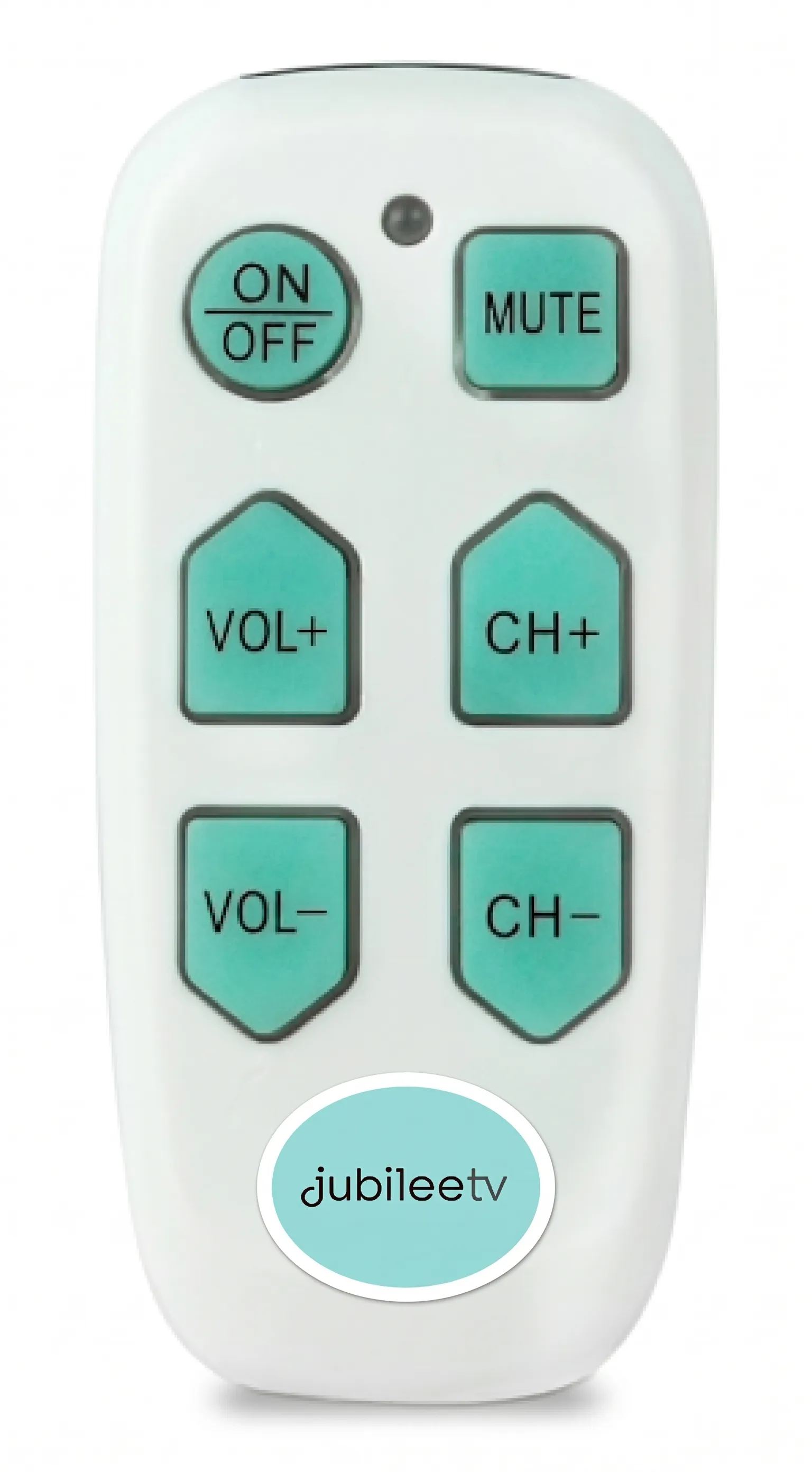
1. Restart Console and Devices
- Restarting in person: Unplug power from both the source device and Console. Wait 30 seconds. Plug both back in and wait for a reboot.
- Restarting remotely: Open Telescope, go to Actions > Settings > Restart.
- Note: If restarting remotely, you'll only be able to restart the Console (not the source device).
- Test Control: Press the Channel Up/Down button to test source control.
2. Verify Remote-to-Console Line of Sight
- Test Signal: Point the 6-Button remote at your Console and press a button.
- Check LED: If the Console's third LED blinks, the remote is connected. If the LED does NOT blink, your remote is faulty. Contact Support for a replacement.
If you've verified that remote-to-console line of sight is good:
- Proceed to Section 3a if you have never been able to control this device.
- Proceed to Section 3b if control worked previously but stopped.
3a. Control Never Worked
- Open Settings: On the JubileeTV remote, press GUIDE three times, then the Blue J once.
- Select your Device: Navigate to Devices and select your source device.
- Reconfigure: Follow the instructions in Add, Change or Remove a Source Devicea to reconfigure your source device.
- Restart Console: Once your device is reconfigured, select Restart from the main settings menu.
3b. Control Worked But Doesn't Anymore
Step 1: Verify HDMI Connections
- Check Settings: Using the standard JubileeTV remote, open Settings (GUIDE x3, Blue J x1). Go to Devices and note the assigned HDMI port (1, 2, or 3).
- Check Cables: Ensure the physical HDMI cable on the back of the Console matches this assigned port.
- Exit Settings: Press the "Back" button on the standard remote until you return to the live TV passthrough screen.
Step 2: Verify Console-to-Source Line of Sight
Almost all devices in this Passive Mode use IR (Infrared), with rare exceptions like the DirecTV Stream Gemini Air (Bluetooth).
- If IR (Infrared): Ensure nothing is blocking the Console and source device. Pull the device to the edge of the shelf. For best results, install the included IR Blaster Cable by plugging it into the Console and placing one of the emitters directly in front of the source device's IR window.
- If BT (Bluetooth - DirecTV Stream Gemini Air): Using the standard JubileeTV remote, open Settings (GUIDE x3, Blue J x1). Go to Devices > [Device Name] > Control Settings > Change Control Type. Select BT and follow prompts using your source device's original remote.
Still need help?
If the steps above do not establish control of your device, please contact JubileeTV Support.