JubileeTV Voice Remote
4 min
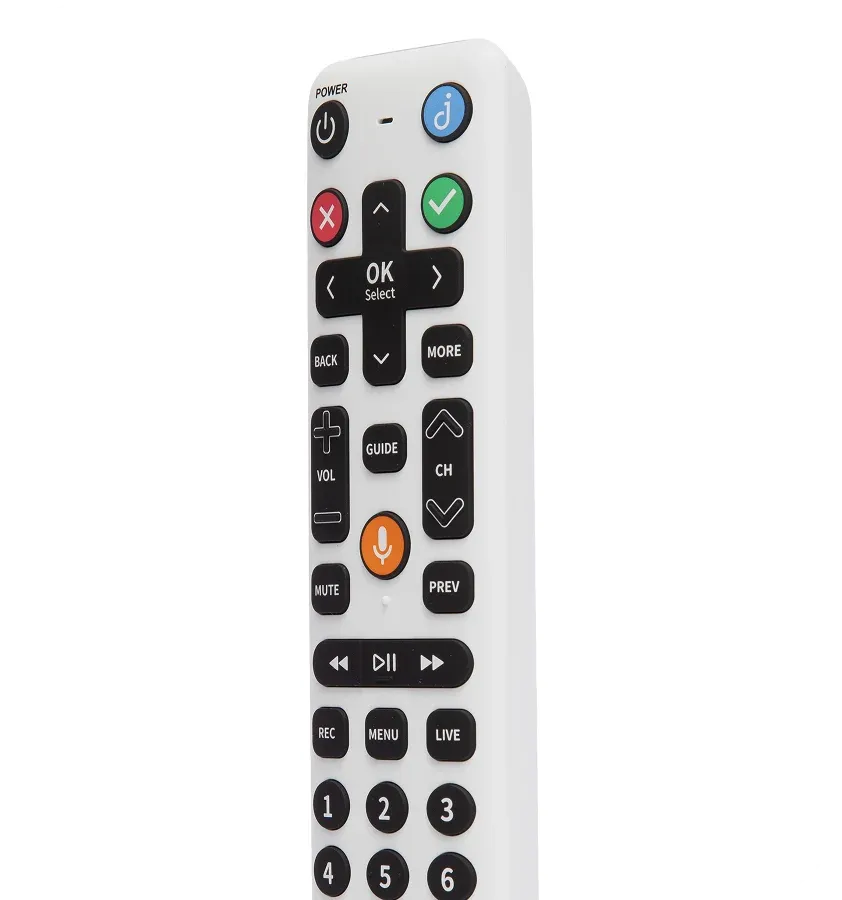
Overview
The JubileeTV voice remote is included with your JubileeTV console. It is designed to control the TV and source devices when the system is configured to Interactive ModeInteractive Mode and Passive Mode with Simplified JubileeTV RemotePassive Mode with Simplified JubileeTV Remote.
Features
- Universal Remote: During setup, JubileeTV configures the remote to control your loved one's TV and source devices. It is also used to navigate the JubileeTV interface, including the Home, Photos, and Contacts screens.
- Access to Console SettingsConsole Settings: Use the remote to access and manage Console Settings directly from the TV (as opposed to using the Telescope app). See Accessing the JubileeTV Console Settingsa for more details.
- Voice Control: Press the orange voice button for quick access to channels, apps, and more.
- Backlighting: The buttons are backlit for easy viewing in low-light environments. See Remote Backlighthub detail for more details.
- Mic: You can configure video calls to use the remote's microphone instead of the console's mic for closer audio capture. See Mic & Video Calla for more details.
FAQ
What kind of batteries does the JubileeTV voice remote use?
The remote requires two AA batteries.
Will I get a notification when the remote batteries are running low?
Yes. When the batteries on the JubileeTV voice remote are running low, the system will alert you in three ways:
- TV Display: A low-battery message will appear directly on the TV screen. As the battery level decreases, this message will display more frequently.
- App: The Primary Admin and any Contact Admins will receive both a push notification and an in-app popup. These alerts will also appear more frequently as the batteries deplete. Additionally, a Remote Battery Low indicator is displayed on the home screen.
- Console: The third LED light on the JubileeTV Console will blink yellow. See Understanding the JubileeTV Console LED Lightsun for more details.
Where can I check the remote battery level?
- App: From Hub DetailsHub Details.
- TV Display: From SettingsSettings -> Remote