Adjusting Console Settings (Classic)
The Console Settings menu has different options depending on your hardware.
Which Console do I have?
This guide is for you if your Console looks like the one below outlined in blue.
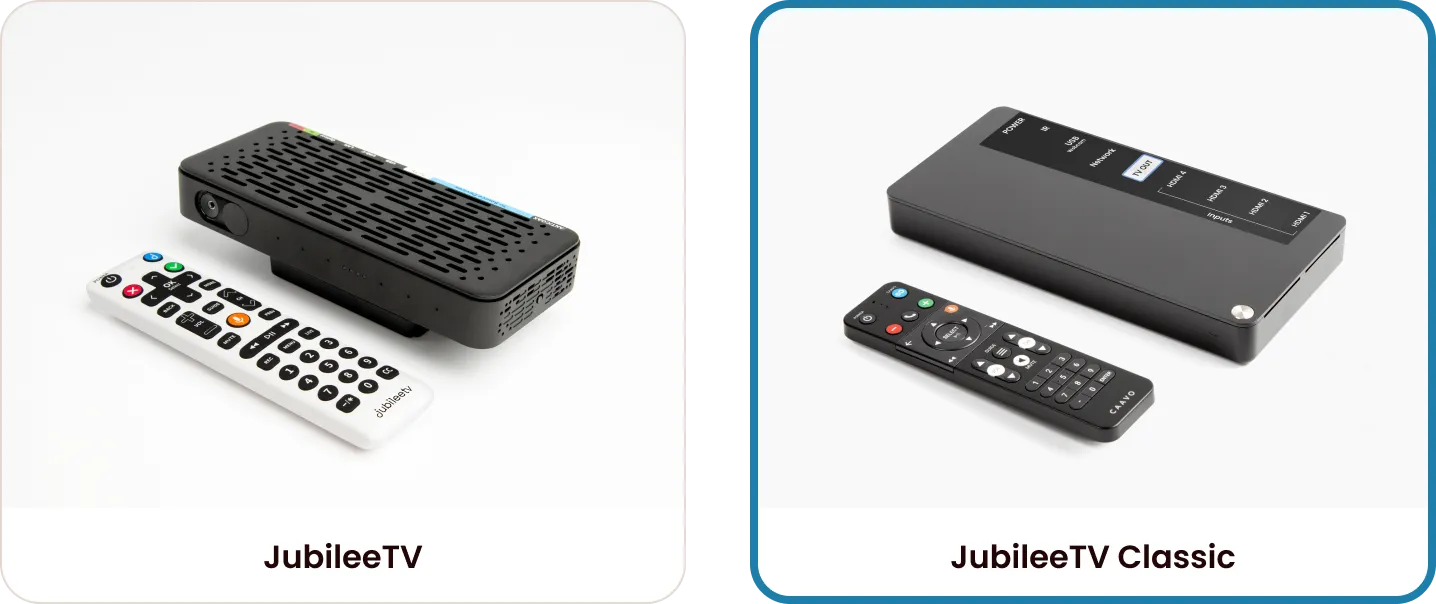
In August 2024, JubileeTV released a new Console model. Please check your hardware before proceeding:
- JubileeTV Console (Newer): If your console is designed to be mounted on top of your TV, please refer to Adjusting Console SettingsAdjusting Settings: JubileeTV Console.
- JubileeTV Classic (Original): If you have the original hardware purchased before August 2024, this guide is for you.
What can I do in Settings?
The Settings menu allows you to manage the technical aspects of your JubileeTV experience, including:
- Changing or adding source devices (Cable/satellite set-top-box, Roku, etc.)
- Updating Wi-Fi or Network configurations
- Re-pairing your JubileeTV remote
How do I open settings?
You can access the Settings menu using your JubileeTV remote.
- Press the Caavo button.
- Navigate to and select Favorites.
- Press the GUIDE button three times rapidly.
Settings Overview
General
Setting | Description |
|---|---|
Location > Zip Code | Change the location of the Console. If you are using a cable/satellite set-top box as a source device, this settings also supports the options you are presented with for a channel lineup |
JubileeTV Interface > Screen Calibration | If the JubileeTV UI on the TV does not fill the entire space, you can use this setting to adjust the size of the UI |
Video Calling > Prompt Before Connecting | The default value for this setting is Yes. It is advised you change this setting at the recommendation of JubileeTV Support. |
Video Calling > Audio Input | The default value for this setting is JubileeTV Remote. It is advised you change this setting at the recommendation of JubileeTV Support. |
Video Calling > Capture Resolution | The default value for this setting is High. If you are noticing choppy, or less-than-seamless video calling, you may consider lowering the capture resolution. |
Camera > Camera Calibration | Use this tool to test the camera placement and microphone. |
Sleep Prompt > Prompt After | The default value for this setting is 2 hours. This setting will apply only if the JubileeTV Console is showing the Home Screen for 2 hours. The sleep prompt does not apply for watching a source device. |
Sleep Prompt > Countdown For | The default value for this settings is 15 seconds. This setting will apply only if the JubileeTV Console is showing the Home Screen for 2 hours. The sleep prompt does not apply for watching a source device. |
Devices
In the Devices section of Settings, you can add/remove or edit the source devices you have connected to the JubileeTV Console.
At the top of the list, you will see your source devices (which can be 1, 2 or 3 in total). At the bottom of the list, you will see your TV output. Each source/output is labeled based on the physical port it is connected to on the back of the Console.
Source Device Settings
Upon selecting a source device, you will be presented with varying options depending on the type of a source device. Each source device will have a Change Device option. If you have replaced a device that was originally setup with the JubileeTV Console, you will use the Change Device option under the Source Device setting to setup the new source device.
Output Device Settings
Upon selecting the output device, which is named by the brand of your TV, you will have the option to adjust Control Settings, Reset Output and Adjust your Smart Plug:
- Control Settings
- Allows you to change the way in which the JubileeTV Console controls your TV
- Reset Output
- Forgets the setup of your specific TV
- If you have replaced your TV, you will use this option
- Smart Plug
- Add Smart Plug
- If you do not have a Smart Plug set up with the Console, this option will be present
- Calibrate Smart Plug
- This option will only be visible if you have a Smart Plug set up with the Console.
- Remove Smart Plug
- This option will only be visible if you have a Smart Plug set up with the Console.
Network
In the Network section of Settings, you can adjust the way in which the JubileeTV Console connects to the internet. You are able to change/add/remove a Wireless Network or Wired Network from the Network section. You also will see various values, such as Status, Network Name, Signal Strength, IP address, MAC address and GHz band.
Remote
In the Remote section of Settings, you will see the battery level of your JubileeTV remote, the MAC address of the remote and the version of the remote. If you need to pair a new remote to your JubileeTV Console, you can do so here.
Restart
To restart your JubileeTV Console, click Restart in Settings.
About
In the About section of Settings, you will see high-level technical information about your Console including the firmware version and device information. You can also generate a log file for our Support Team from this section, if you are ever asked to.
Factory Reset
This restores the Console to pre-setup state.